Linden Lab ToS Changes and How they affect Paypal/Credit Payers!

UPDATE 05/17/20013:
To give Second Life users more options to purchase Linden dollars for use in Second Life, Linden Lab is piloting an Authorized Reseller Program. This program authorizes third parties to resell L$ (that they purchase on the LindeX) to Second Life users, using a variety of international currencies and payment methods.

We are proud to announce that ZoHa Islands became one of those Authorized Linden Dollar Resselers. More info can be found HERE.

Hello ZoHa Islands –

Big changes on the Linden Lab front with the new terms of service additions. 
(See the official blog post from Linden Lab at the bottom of this page.)

Due to this change in the TOS we have had to pull the ability to BUY L$ from our tier terminals.

If you don’t want to buy your L$ from Linden Lab to pay your tier you can still pay your tiers via PayPal and … Paypal does accept all major credit cards as well. Even if you don’t have a paypal account you can use your credit card to pay your tier! 

How to pay your tier with your credit card or prepaid card ?

  • 1. Click on our tier terminal
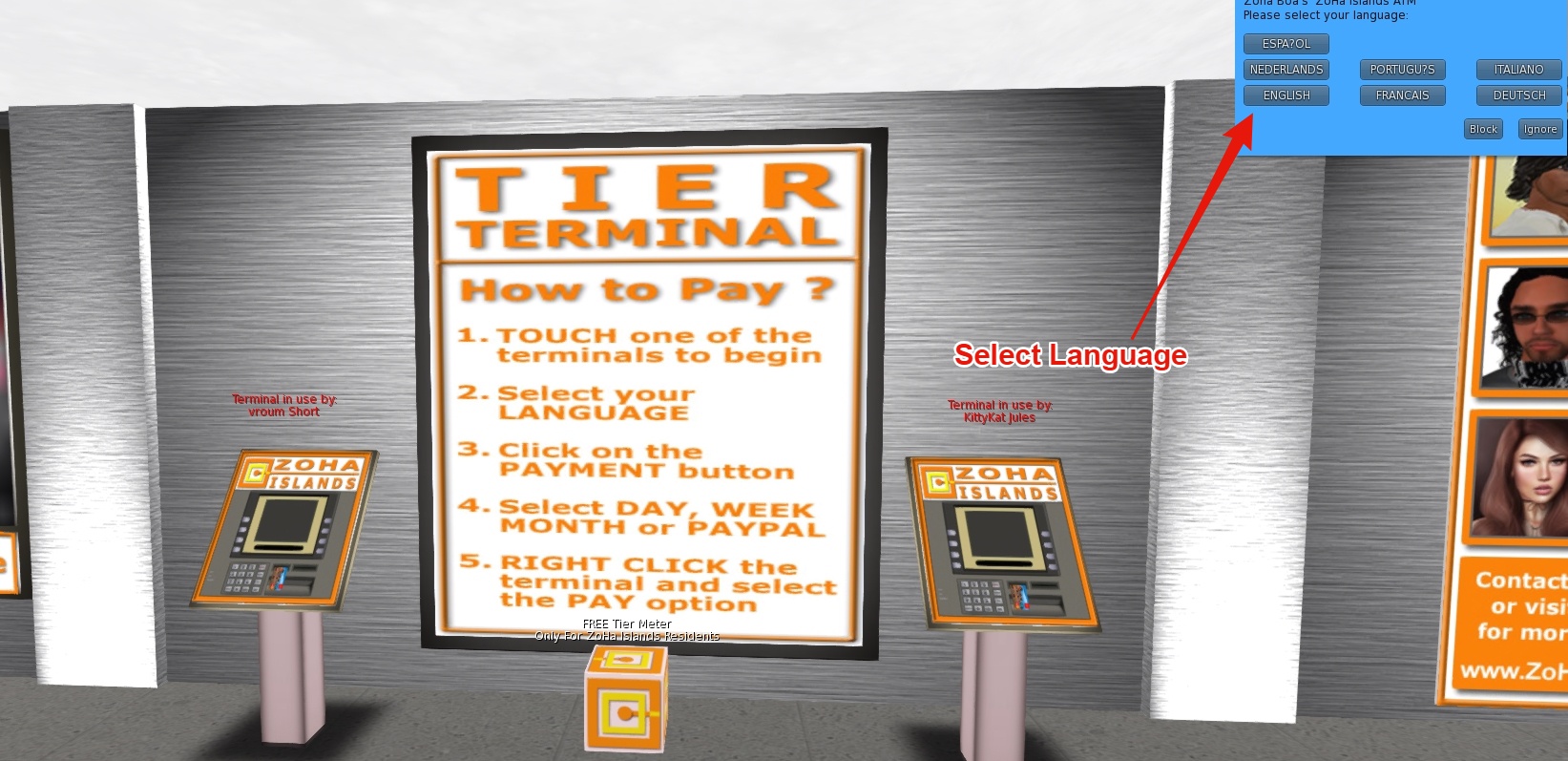
  • 2. Choose your language
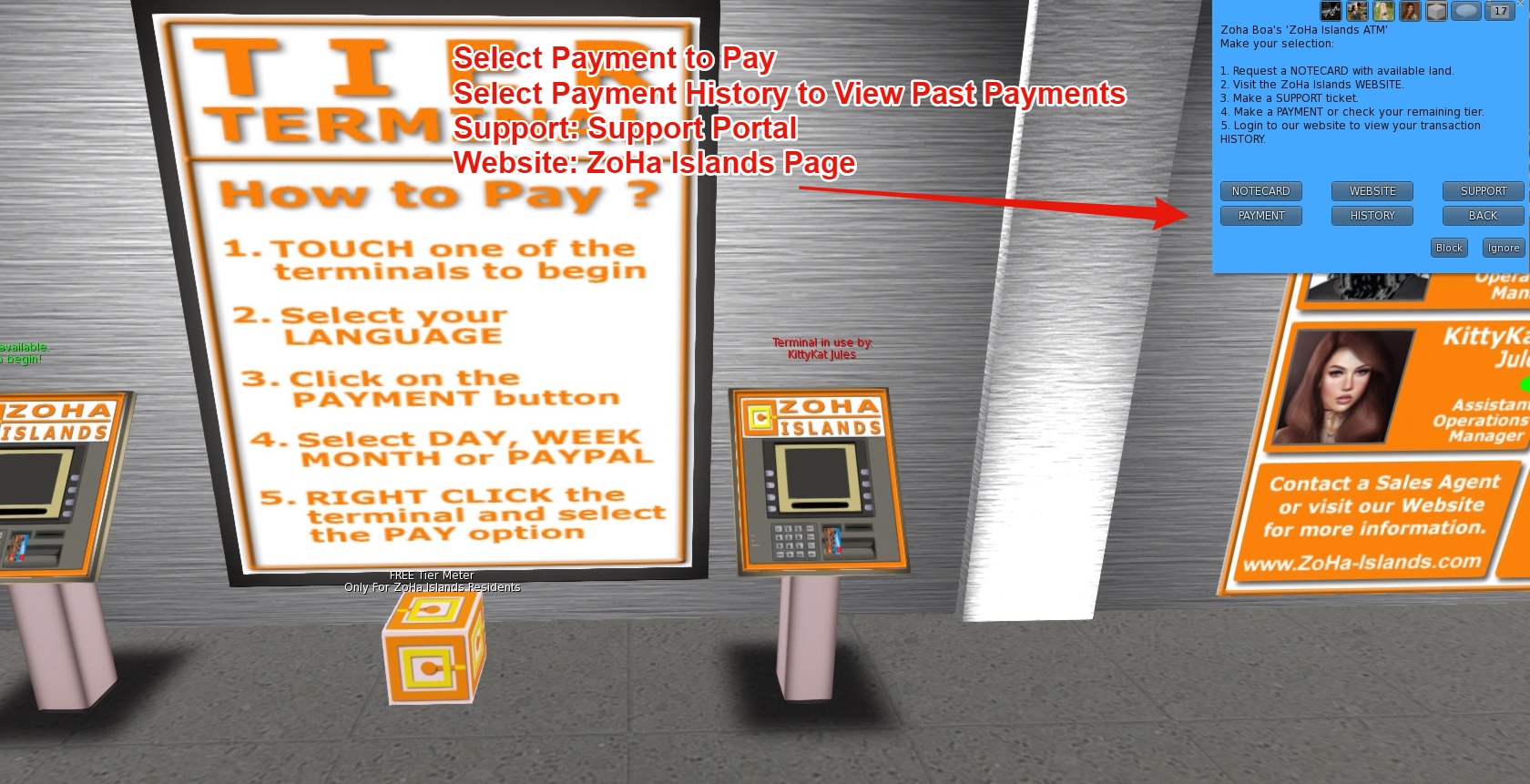
  • 3. Select PAYMENT
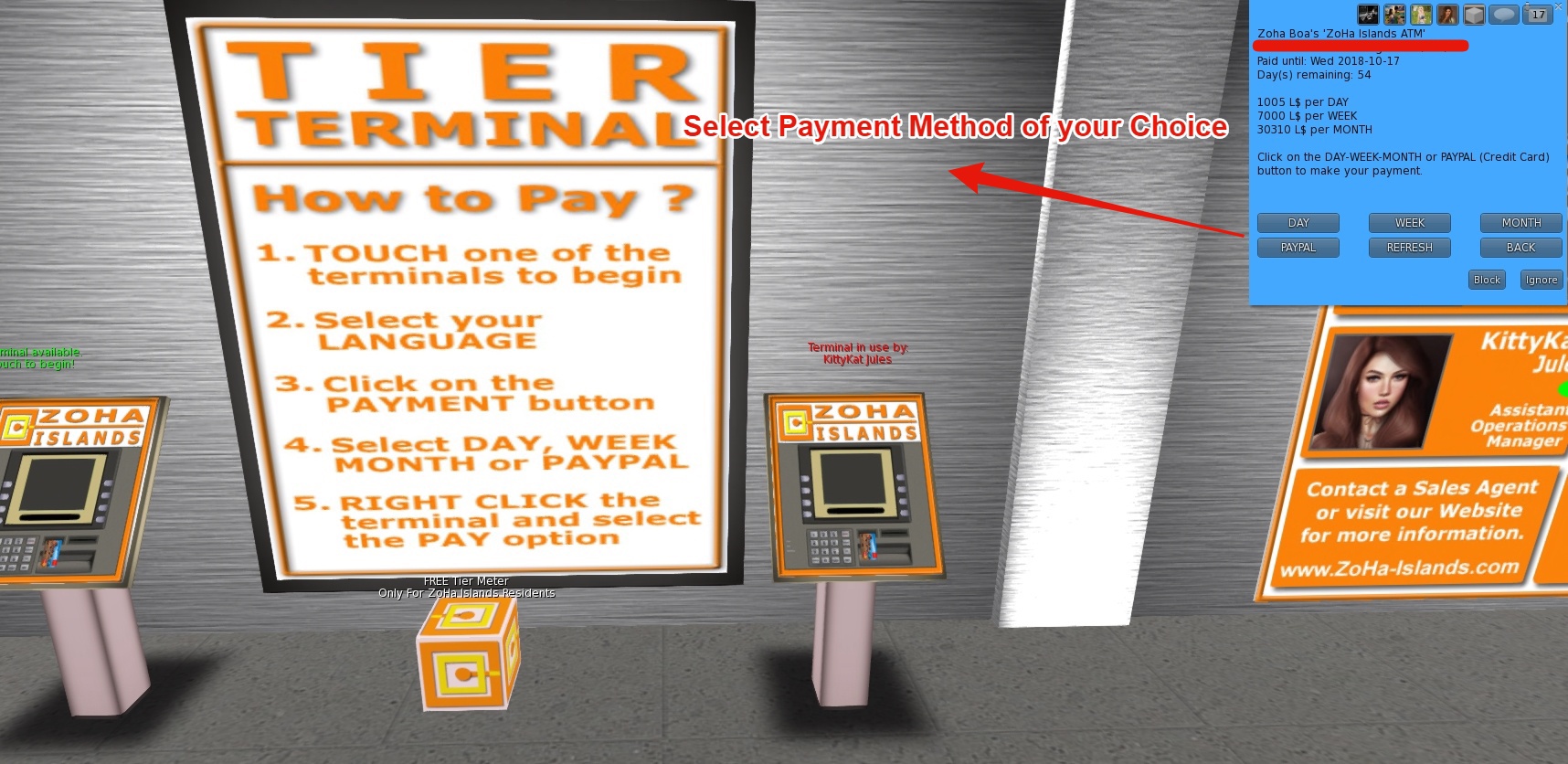
  • 4. Select the PAYPAL option
  • 5. Click on the link you see in your SL viewer to go to our website
  • 6. On our website you can choose to make a one time only weekly or monthly payment with PayPal.
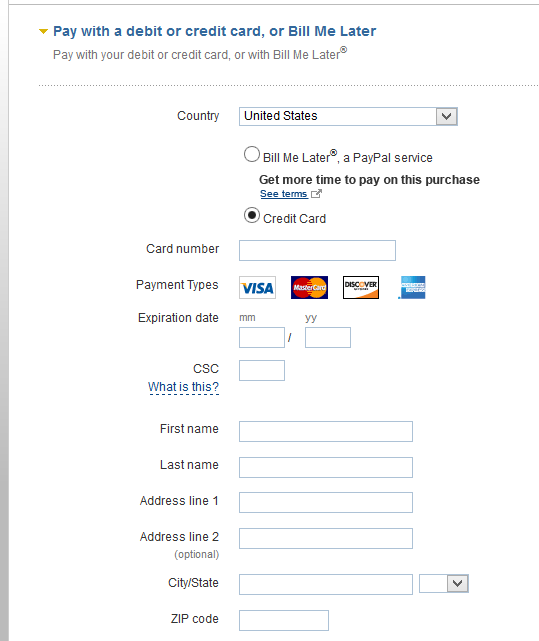
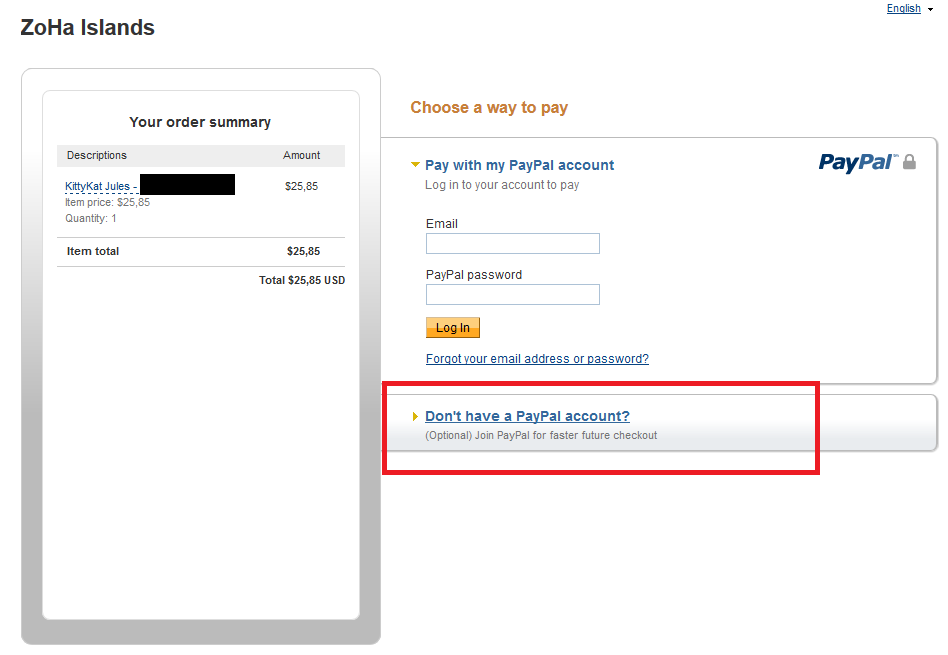
  • 7. On the PayPal screen you can choose “I don’t have a PayPal account” and manually enter your credit card info as you can see in the screens below.
    (Click on them to zoom)
PayPal-01

PayPal-02

PS:
PayPal / Credit Card payments need to be booked manually. So it might take a few hours before we have booked your payment.

Repost from the Official Linden Lab Blog:

Updated Second Life Terms of Service

by Community ManagerLinden Lab ‎05-07-2013 10:41 AM – edited ‎05-07-2013 11:55 AM


When you log in to the Second Life Viewer today, you’ll be asked to accept an updated Terms of Service. As with any legal document, it’s important to read in its entirety before accepting, but we wanted to highlight one of the changes we’ve made in this update: to better protect Second Life users against fraud, the updated Terms of Service make it clear that trading of Linden dollars (L$) on exchanges other than the LindeX, Second Life’s official L$ exchange, is not authorized or allowed.

 As the official exchange owned and operated by Linden Lab, the LindeX is the best place to buy and sell L$ for use in Second Life. It consistently offers the best rates for both buyers and sellers, and by limiting L$ trading to the exchange we operate, we are better able to protect users against fraudulent activity.

 The majority of Second Life users who purchase L$ do so through the Second Life Viewer by clicking on the “Buy L$” button. There will be no change to that function, as these orders are placed directly through the LindeX. Similarly, shopping on Marketplace will not be impacted.

 If you haven’t used the LindeX before, check out this Knowledge Base article and the video below for more information:

10 Tips to stay secure in Second Life!

Hello to all at ZoHa Islands – lets talk about paranoid! Here are 10 tips to stay secure in Second life and all around in general on the Internet.

They’re watching you. Literally. In a recent article posted at Ars Technia, it was reported that hackers have the ability to remotely take over your computer and install software on your computer that allows them to turn on your webcam. What? They do this using a RAT pack (Remote Administration Tool). In addition to that, we are hearing of new router exploits that give a hacker the ability to remotely access your router and gain access to your Local Area Network. If you think you’re overly paranoid about your computing you should be. This stuff is scary.

So now that you know that the whole world is out to get you, what can you do about it? These steps will help close some of the holes used to exploit computers.

Turn off Remote Administration – Remote administration in routers give users outside of your network the ability to access and control your router. In many cases, this is turned on by default. What? Of course the intention of this option is benign, but it can be used by a hacker to get into your LAN and see all of your internal computers, manipulate your firewall and do basically anything they want with your traffic.

To do this, you can navigate to your router’s admin page using your web browser. Normally, this can be done by typing http://192.168.1.1 or http://192.168.0.1 into your browser’s address bar (not the search bar). Your router location may vary. You will also need to know the username and password of your router. If you do not know it, and the router was supplied by your ISP, you can check the physical device to see if the information is printed there or call your ISP for log in details.

Look for an “Advanced” or “Administrator” tab and make sure remote administration is disabled.

Turn Off Wake On LAN – While not necessarily an exploit, WoL allows your computer to be turned on when powered off from an outside source. Imagine this, ole paranoid one, if a hacker had access to your internal LAN and had the ability to turn on your PC whenever he or she wanted to perform whatever nefarious acts he or she wanted. Unless you have a specific need to have it on, go into your computer BIOS when booting and disable that wicked feature. Depending on your BIOS, it may not even be an option.

Turn Off Allow Network Traffic To Wake Computer – Similar to WoL, your network adapter has the ability to listen to network traffic and can allow your computer to be woken up while asleep.

To shut this down, go into the Control Panel, look for your network adapter, right-click it and select Properties. Under the Power Management tab, uncheck that option if it is checked.

Pic1

Turn Off UPnP – Turn off Universal Plug and Play in your router. Universal Plug and Play allows programs within your network to automatically punch holes in your router. What? Us paranoids can’t allow this to happen! Imagine a virus on your network having free reign to open ports on your router to allow even more bad guys in. For most of us, having this feature off will not affect anything we do from day to day. For others, you may need to occasionally go into your router and manually open ports for programs or system that require them to be open–like game consoles, for instance. You can turn off UPnP in your router.

Uninstall Java and Adobe Reader – With Windows doing a better job securing the OS, hackers are seeking softer targets like Java and Adobe Reader, both of which seem to have some type of zero-day exploit a couple times a year. Most of us have these programs just sitting on our system, never being used and never being updated to the latest versions. If you simply must have them, be sure to update them frequently.

Scan Your Ports – The Gibson Research Corporation (GRC) has been providing a free online tool to scan your router for open ports for over ten years. This tool is called Shields Up and you can find it here. The UPnP Exposure test will check to see if your router is open to a new router exploit that gives hackers the ability to access and control your router.

Pic 2

If all is well with the GRC test, you will see the above image.

Run Your Browser In Privacy Mode – Private Browsing (which may be called something else depending on which browser you’re running) allows you to surf without the fear of a history being saved, and temp images, videos, files and cookies being stored on your computer.

In Firefox and IE, this is enabled by hitting CTRL+Shift+P.

In Google Chrome hit CTRL+Shift+N for Incognito mode.

Do The Basic Computer Security Measures – Of course, you should also make sure you are running a current antivirus–if your free antivirus from Symantec or Mcafee has expired, uninstall it and get another. If you do not have one, Microsoft Security Essentials is free. In addition, make sure your WiFi is encrypted in your router settings using WPA-2 so the whole neighborhood isn’t using your bandwidth. Make sure you have Windows automatic updates turned on. Make sure your Windows firewall is also enabled. Modern Windows Operating System will have these on by default, and if you’re running Windows 8 you also already have an antivirus called Windows Defender–built in.
Using general account: you should always run as a standard user. The theory is, if you happen to get malware on your system, the malware will not have the elevated rights of an admin because it is running under an account that only has standard rights. While this won’t necessarily protect you completely, it is one more thing you can do to slow down the bad guys. Keep your admin account, of course, because you will occasionally need it to install software, etc.

Use WAP-PSK encryption instead of WEP
WEP is like locking your house with a screen door.
Thanks for reading have a great week…

Deuce Marjeta
Operations Manager

Paying Tier at ZoHa Islands – Terminal/Tier Meter Functions

Hello ZoHa Islands –

While some of you are quite familiar with our tier terminals and system, we still do get questions on how it operates and the functions it provides. So here is a detailed manual on the many functions and operating the terminals to make the most out of the tools we at ZoHa Islands provide our residents. Help us help you!

Upon purchase of any of our land you are given a Welcome Package with a ZoHa Islands Tier Meter inside the folder along with some other useful information, Notecards and Landmarks.

Below is a picture of exactly how these tier meters work – they can help you plan when your tiers need to be paid, and in turn help with the workload of sending overdue notices from our staff.  If there is an instance where you are going to be late – please contact us via support ticket so we can note your account (Please note approvals on late payments are done on a case by case basis and depend on your payment history with ZI).  We also offer a daily pay option for those times when L’s may be a bit tight or you are going away a few days RL.

If by chance you need a new one – they can be picked up next to the tier terminals located in our sales office.  The boards are 1 prim so can easily be rezzed and hidden in an discrete place on your land.

ZI Tier Blog Pic 8

Here is a step by step instruction on how the tier terminals function and the wide array of options they do provide. They can be found in our sales office.

Select Your Language from the first menu:

In the Next Menu you can Select to receive a Notecard with a Link to Available Parcels, Visit our Website, See your Payment History or Make a Tier Payment – Please select the option that best suits your needs.

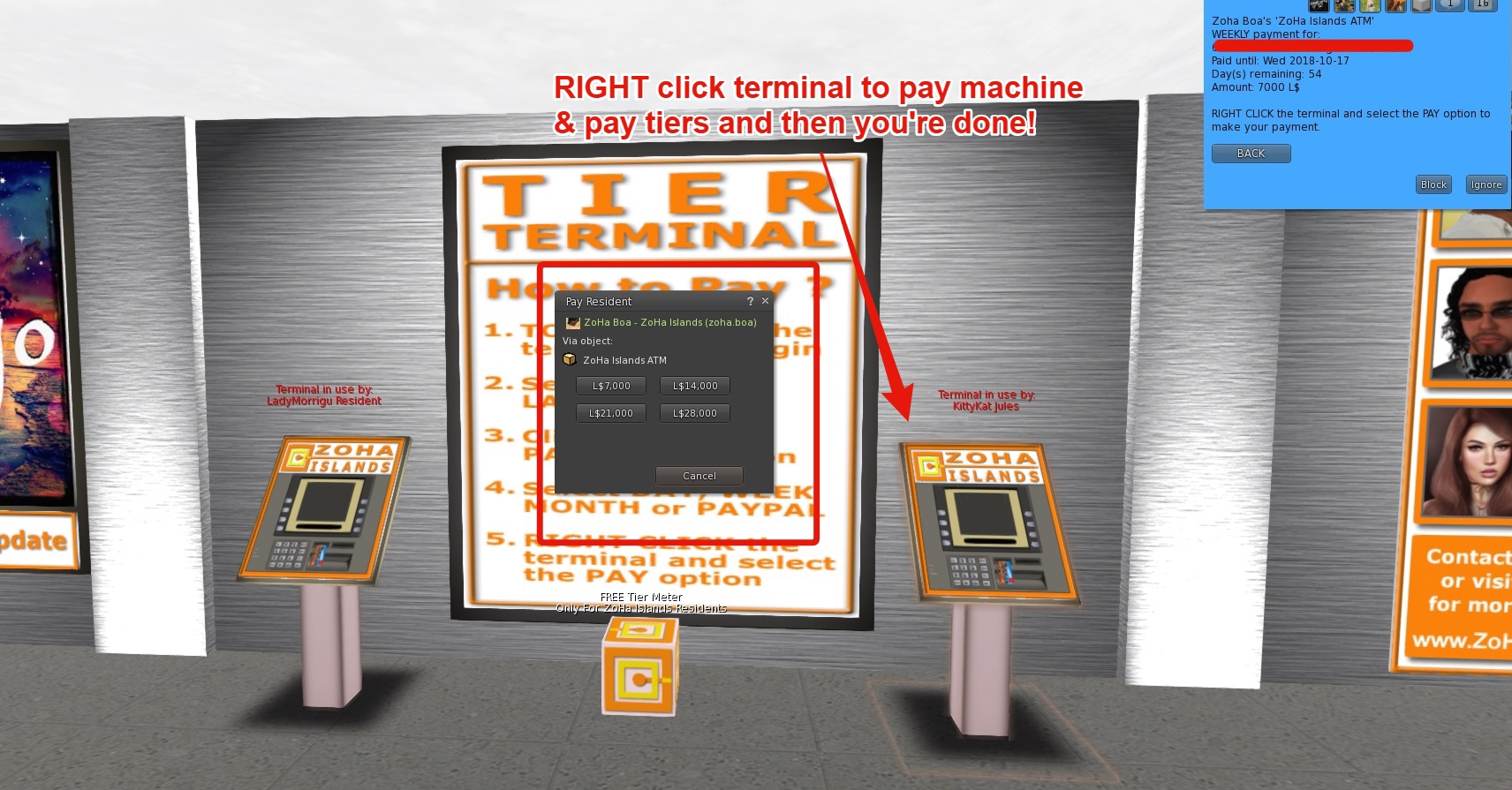
In the Third menu -you can select the payment amount of your choice – Daily – Weekly Monthly and/or PayPal – Even set up recurring payments – so you don’t ever have to visit the terminal again 🙂 Tiers can be paid via Paypal even if you don’t have an account using your debit/credit card.

To complete the transaction using Lindens – Right click the terminal at this point and pay the appropriate amount – your account will be automatically credited.

If you choose to pay with PayPal – you will be directed to click on a Link to take you to the PayPal Payments page -(picture below)

You can pay with a one time payment via PayPal or a Automated Subscription.

PayPal payments are manually processed once/twice per day by ZoHa Islands Owner.
Because of that it is possible that the tier terminal is not up to date when you check your remaining tier.

How to cancel your PayPal subscription when needed?
1. Log into your PayPal account on http://www.paypal.com.
2. Click on the settings gear (upper right corner)
3. Click on the Payments Tab
4. Look for your Preapproved Payments – Find the ZoHa Islands Payment Agreement
5. Click the CANCEL button.

ZI Tier Blog Pic 7

Second Life QuickTips – Meeting & Making Friends

Repost from Official Linden Lab Blog –

QuickTips – Meeting & Making Friends

by Community ManagerLinden Lab on ‎03-15-2013 09:44 AM


Second Life is a fun and social space, so meeting and making friends is easier when you understand the basic controls and options for chat. Learn about the text and voice chat features that can help you meet and make friends in Second Life in our latest QuickTips video tutorial.

Watch the QuickTips video tutorial here.

Learn even more in about Second Life communication in our Knowledgebase:

Did you miss our previous QuickTips videos? Check ‘em out!

Handy Keyboard Shortcuts to Make SL Navigation a Breeze!

Heya ZoHa Islands!

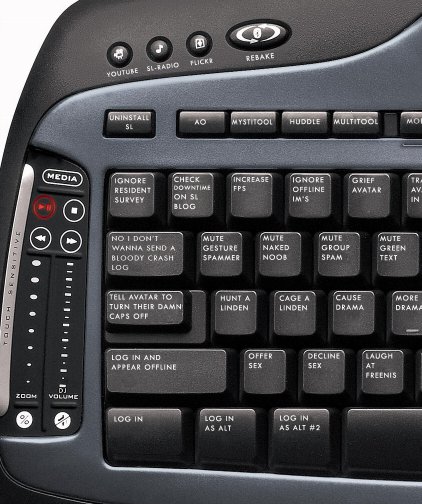
The weekend is near!  Time for my weekly dose of making your SLife easier.  Since we dont all have cool keyboards like the one below…LOL.

Second_Life_keyboard-m-s


This week we have a wonderful list of keyboard shortcuts.  Some make navigating SL a breeze…others make photo taking and snapshot captures less crowded (i.e. the hide all HUDS option).  Having trouble getting the LM out of a Notecard?  Try the Control M function – pop up your map – type in the sim name and go :).  These shortcuts really come in handy in your daily Second Life.

There is a more comprehensive list on the SL wiki which is worth looking at.

For UI developers visit this page which is based on operating systems.

User Interface
Ctrl-F Search (previously called Find, hence the shortcut key F)
Ctrl-G Gestures
Ctrl-H Chat History
Ctrl-I Inventory
Ctrl-L Link (selected objects in edit)
Ctrl-M World Map
Ctrl-P Preferences
Ctrl-Q Quit the Second Life viewer
Ctrl-R Run Mode (toggle switch)
Ctrl-T Instant Message open/close
Ctrl-W close current Window (or IM tab page )
Ctrl-Shift-W close all Windows
Ctrl-U Upload Image
Ctrl-Z Undo (once while in edit – chat window off)

Edit
Ctrl-1 Focus
Ctrl-2 Move
Ctrl-3 Edit
Ctrl-4 Create
Ctrl-5 Land

Script Editor
Ctrl-F Find/Replace dialog

Client
Ctrl-Alt-C disable Camera Contraints (Client->Disable Camera Contstraints)
Ctrl-Alt-D Open/Close Debug menu (some systems require Ctrl-Shift-Alt-D)
Ctrl-Alt-M Mouse Moves Sun (requires Debug menu on)
Ctrl-Alt-R Rebake Textures (Client->Character->Rebake Textures)
Ctrl-Alt-T Highlight Transparent
Ctrl-Alt-1 Hide/Show UI
Ctrl-Alt-6 All Fog Off (Fog is SL default…no fog must be reset every log in)
Ctrl-Alt-A Toggle Animate Textures On/Off
Ctrl-Shift-A Start/Stop Movie to Disk
Ctrl-Shift-L Unlink (selected objects in edit)
Ctrl-Shift-M MiniMap
Ctrl-Shift-N Force Sunset
Ctrl-Shift-S Snapshots
Ctrl-Shift-1 Sim Stats (you will need to turn off or move the minimap to view the full stats page)
Ctrl-Shift-3 Texture Console (to view textures on a particular object right click and go into
edit and then press ALT 3 , the textures for all sides of that object will be highlighted in yellow)

Rendering
Ctrl-Alt-Shift-= Turn particle effects on/off.
Ctrl-Alt-Shift-3 Remove all Linden trees. This is a toggle… press again to turn trees back on.
Ctrl-Alt-Shift-5 Remove ground cover. This is a toggle… press again to turn ground cover back on.
Shift and Drag Copy object in edit

To pan around an object hold down the Alt key and left-click an object or avatar then use the left and right arrows to pan around (this function goes circular around an object) & page up and page down to move closer or further away. To change the zoom, you have to use the following keys:

Ctrl-8 Zoom out
Ctrl-9 Reset zoom
Ctrl-0 Zoom in

Strafe Camera
Hold down Ctrl-Alt-Shift and left-click an object or avatar then use the arrow keys to strafe left right up or down. (this goes vertical and horizontal on an object view).

How to Sell your Linden Dollars. Converting SL currency into RL money.

Hello Zoha Islands.

Here’s a great tutorial I’ve come across while surfing a few fellow bloggers postings.  This is a great article because most people don’t know how to do this – or how to get the most for selling your Linden Dollars.   This is wonderful knowledge for the aspiring business entrepreneur in Second Life.

The original article can be found here.


How to sell Lindens

by Gogo on March 6, 2013

Do you know how Market Sell vs. Limit Sell differs? If you don’t, you’re losing money every time you cash out your Lindens. I discovered back in 2007 after selling Lindens a few times, that I could set a better rate than what’s offered by default on the Linden Dollar Exchange.

First, go to L$ Exchange Settings in your SecondLife.com dashboard and change the Interface Mode from Basic -> to Advanced.

How to sell Lindens $L

Then go to the Sell L$ page and look at the Open Sell Orders at the Best 20 Rates, and decide what Exchange Rate you want to sell at. I typically sell at L$248/$1.00US (sells almost instantly, if there’s less than a million Lindens listed already), or some people sell at L$247/$1.00US and the wait may be a few hours to a few days. Any exchange rate higher than the usual lowest rate or not listed there, will sell instantly.

For example, in the picture below, you’ll see that there’s L$330,736 listed for the L$253/US$100 rate, and that person could have listed for $248 and sell instantly, but for some reason they didn’t (and losing money in the process).

How to sell Lindens $L

As a seller, you want to exchange the least number of Lindens for $1USD. The same concept can be applied to Buy orders, except in the reverse. You’d want the most Lindens for your $1USD if you’re buying.

How to sell Lindens $L

Here’s an example of how much money you’d lose selling at Market Sell (the rate determined by the Linden Dollar Exchange vs. Limit Sell (the rate set by you).

$10,000L @ Market Sell = $37.51US proceeds
$10,000L @ Limit Sell = $38.87US proceeds
Difference = $1.36US

That’s not much of a difference, but what if you’re selling hundreds or thousands of Lindens per month?

$80,000L @ Market Sell = $300.00US proceeds
$80,000L @ Limit Sell = $310.89US proceeds
Difference = $10.89US