3 Crucial Pieces of Safety Advice When Using Browser Extensions in Windows

Browser extensions have been around for a while, but it wasn’t until recently that they started playing more of a role in your browsing experience than the pesky tool-bars we used to see back in the days of Internet Explorer 6. Granted, there are still many people new to the whole extension thing, along with many hardened veterans in the computing world who feel a certain distrust born back in the days when tool-bars were shoved down your throat at every instance. Things have changed immensely as soon as Google Chrome and Firefox became major players, but we still have a long way to go. That’s why I’m going to teach you how to employ safety when using extensions.

1: Just because the extensions are hosted on the developer’s “store” doesn’t mean they don’t bite.

When you look through Firefox’s add-ons site or the Google Chrome store, you’ll find a ton of browser extensions, each with their own ratings and descriptions neatly laid out for you. There’s a ton of stuff you can get and most of it is free.  Both of the above-mentioned sources are very trustworthy and come from the developers of the
browser you may be using. Sadly, this doesn’t mean that you should just hop right in and download anything that meets your eyes. There are a lot of malicious extensions out there that can be used to hijack your computers. Granted, browser developers do their best to keep malware out of their extension stores. However, their security isn’t always going to stop the bad guys from butting in and giving you a bad apple. It’s the unfortunate truth of the Internet. To prevent compromising your computer, only get extensions that have lots of positive feedback. Search Google for the name of the extension, the name of your browser, and then the word “malware” after it. See what you find!

2: Extensions can be forcibly installed on your computer.

It shouldn’t have happened to me, but it did: I downloaded malicious software and opened it. It happens to the best of us. During the installation, it sneaked in an extension on my Chrome browser that popped up ads every few pages I visited. I looked at my list of extensions and, surely enough, there it was. There was something there I didn’t ever install myself. Forcible infections via proxy have a way with making your computer behave in all sorts of inexplicably funny ways. To prevent something like this from happening, download software that comes from trusted publishers. Avoid big green “Download” buttons that appear next to a ton of other “Download” buttons on some websites. A lot of people fall for this trick and   it’s sad to see how many actually get infected.

3: Be careful when giving your information to an extension.

Seriously, I can’t stress it enough: Use extensions only from trusted developers. Just because an extension is working as it should be doesn’t mean that it won’t unintentionally leak information about you to malicious sources. A hacker can access the extension developer’s database and steal all the information it collected about you. In this day and age, that’s how most compromises happen. Large database leaks can really disrupt the lives of many people. Make sure you know what the extension is taking from you. Does it need your credit card info? Your phone number? How about your passwords? Don’t give a browser extension any information that you would mind being leaked, unless you’re certain the information is encrypted upon storage and decrypted on your computer with a passkey that you control. I would also recommend 2 crucial things you need on your computer to help protect you from virus and maleware. One is a program I talked about in past post MALEWAREBYTES this is the best freeware maleware scanner out there and is really effective and worth the price for the pay version.  The next program is Microsoft Security Essentials is another freeware security that I must say is the best virus scanner I have found beyond expectations over paid anti virus scanners.  There you have it the only 2 programs to help keep you safe you will ever need. Make sure when downloading and installing these you first remove any other virus scanners you have on your system.

Anything Else?

It’s all about trust and scrutiny. Before downloading anything, scrutinize it carefully. Playing detective is always fun, anyway! If you have more thoughts on the subject, leave a comment below!

Have a Great Week
Deuce Marjeta
Operations Manager

15 Tips to Speed up Your Computer – Part 1

Finding ways to speed up your computer is the most important thing you could do as a computer user and as a second life user. This might save your computer from being thrown out the window, or even smashed up with a hammer. This is how far people get pushed when computers don’t do what they want them to do. It is one of those annoying little things that you have to do all the time, maintenance jobs, just to speed up your computer.
When you have a slow computer and you are trying to work on it, you can easily get frustrated to the point of doing something drastic!

SpeedUpYourComputer

Hey but calm down!

I have to tell you something truthfully. It’s your fault that your computer is slow because you do not perform computer maintenance on it. It is your responsibility to speed up your computer and make it run at its optimal performance. Don’t go blaming the computer because it is slow, follow these steps below and fix your problem now. Most slow computers have nothing to do with your CPU speed and everything to do with junk files building up on your computer and the lack of organization.

Let’s see if we can help you make your computer run faster!

Delete Unwanted Files.
When I say to delete unwanted files, I do not mean you should go around your computer and delete any file you do not want. In this case, I’m talking about the files that you have created yourself, and are totally aware of what they are. For example if you created a Microsoft Word document and you no longer need it, and never will, then I suggest you delete that file.
This is the kind of junk that clogs up your computer. You have to ask yourself, “Do you really need it? Files that you have created such as documents and image files can be safely deleted by going to the file on your computer, right clicking on its, and choosing delete from the menu. Keeping your computer or organized and junk free, is a great way to speed up your computer.

What Files are Safe to Delete or Remove From my Computer?
Many computer users would like to clean files from their computers but do not know what files to delete. Therefore to avoid deleting the wrong files, the computer is simply left alone to store more and more files. This can cause major problems with your computer. It can start to run slow, pop up with error messages, and generally become a confusing and cluttered system. If you do not know what files are safe to remove and delete from your computer, it is extremely important that you find out.
There is one basic rule when deleting files from your computer: If you do not know what the files is then leave it alone!

What files are not safe to delete or remove from my computer?
BIOS Settings:
Lets face it, unless you are a computer technician, you should not be flashing or upgrading your bios any time soon. The main thing you might enter the BIOS for is to set the boot order of your devices so you can boot from a cd. You cannot access the BIOS after you have loaded your operating system.

Operating System files:
When you install Windows (or another operating system) there will be a folder containing files that will run your computer. For Windows the system files are usually in a folder named Windows, stored directly in C: drive. My advice to you is not to even look in there. If you accidentally delete a file from there your computer might not work or startup.

Program Files:
This is where all the programs you have installed are stored. If you accidentally remove a file from one of these folders you might cause the program to not work. If you want to remove a program you must do it through the control panel in Add or remove programs or programs and features in Vista. You cannot delete individual files hoping to get rid of the program. Some people also think that if they remove or delete the desktop icon that is a shortcut to a program, this also removes the program. This is wrong also.

Hidden Files:
Hidden files are hidden for a reason. Do not touch them unless it is absolutely necessary.

When you are asking the question “what files can I delete from my computer“, make sure you steer clear of those ones listed above!

In the screen shot below it shows the Windows folder which is contained on your main C drive. You should not go in there at all. Next to it is the users folder where you will find your username folder and that will hold all the files that you have created. This includes pictures music downloads and all that stuff.

SystemFolders

What files can I delete from my computer?
Lets just say that any file you create, you can delete. If you put a photo onto your computer it is your choice to delete it or not. Deleting this file will not effect the computer and how it runs. So if you created a Word Document or downloaded an mp3 file then you can delete them when ever you want to. Just make sure you know what you are deleting before you make a mistake. The files you can remove are usually stored in the documents, pictures, or music folders.

How do I safely delete or remove temporary files from my computer?
Every time you do something on your computer a temporary file is created. So if you download a file or even open a document, a temporary file is created. These files can accumulate and need to be cleared from the computer as they have no value to you. There are a number of ways on how to delete temporary internet files from your computer.
1.Delete files from the C:\Users\Username\AppData\Local\Temp folder. (%temp)
2.Delete files from the C:\Windows\Temp folder (temp)
3.Delete files from the C:\Users\Mitz\AppData\Local\MicrosoftWindows\Temporary Internet Files for Windows Vista, and C:\Documents and \Settings\mitz\Local Settings\Temporary Internet Files for Windows XP. These files include cookies, browsing history, and more..

Once you get the hang of what file is ok to delete safely, you will never have to wonder again. Just stick to the main rule: Do not delete it if you do not know what it is!

Delete Hidden Junk Files
Hidden or temporary files are created without the user knowing. All you have to do is open files, browse the Internet, install programs, and more files are created in the background. There is so much happening in the background that most people are unaware of and do not know that this area exists. This is something you are going to have to learn about if you want to speed up your computer.

Remove Unwanted Programs
Are you one of those people that constantly download programs and install them onto your computer? Every software program you have on your computer is taking up space. It is not only taking up space, but it might also be checking for updates and connecting to the Internet. It also might be starting up when your computer starts up. There are so many good reasons why you should remove unwanted programs.
After you have removed the software program that you did not want, make sure you restart your computer to complete the process.

Defrag To Speed Up Your Computer
When you install programs and save files on your computer, the files are automatically saved to the closest available space on your hard drive. This means that files for your programs are fragmented if your hard disk drive is not organized correctly. This is why we need to de-frag our computer to place the files back together and to place the most frequently used files at the front for easy access.
You should defrag your computer at least once a week if you use your computer often. If you do not use your computer that often, then you can defrag less often. If you are using the Windows disk defragmenter which is located at start menu>accessories>system tools>disk defragmenter, you can choose to “analyze” first before you choose defrag. This feature will tell you if you need to perform this task or not.

Disk Clean Up
This program comes free with Windows and will get rid of the rest of the junk files that you have missed. Go to start menu>accessories>system tools>disk cleanup. You can see more information about this system tool on my computer maintenance checklist next week.

Always Pay For A Virus Program!
By all means, you can waste your time trying to find the best free anti-virus program, but do you really want to risk it. Don’t get me wrong there is nothing wrong with a free anti-virus program. In fact I will recommend Microsoft Security Essentials as my number one freebie. However, even though this proved to be secure, it is safer to have the extra security features that come with the paid versions. Now days most new anti virus also come with a firewall that if they do not, Windows provides a perfectly good firewall for free.
Over the past 25 years I have tested at least 10 paid virus programs and have ended up with MSE running on my computer. It does not annoy me, it is not asked me stupid questions that I cannot answer, and is not make me deal with difficult settings. I like a program that just does its job.
If you do not have a virus program installed you are risking everything! Sometimes your computer will gradually slow down when it gets a virus, and other times it will be crashing within minutes. Is that really worth the hassle?

Avoid Multitasking With Large Programs
If you’re anything like me, you will have 20 Windows open at the same time, with your Internet browser having at least 15 tabs opened as well. Yes I know it is crazy and I’m trying to reform. I have a lot of experience in multitasking and have realized that some programs cannot be open at the same time as others. For example you should not be running a large program like Photoshop or Pinnacle video studio, while running a virus scan or Second Life at the same time. We all know what the right thing to do is, but we just can’t help ourselves.
Warning: Working on 20 programs at the same time is not good if you are trying to speed up your computer!

Use an External Hard Drive for Backup
Nowadays there is no excuse for not backing up your files! It is unbelievably cheap to buy an external hard drive or even a portable USB flash drive to store backup files on. Both these portable devices are simple to connect to the computer via a USB plug. Once connected, you will find the device if you go to your start menu and then press on computer. For older versions of Windows it will be called my computer.

Update Programs Regularly
Every program on your computer must be updated regularly. If you do not do this, you will find that you will get problems, guaranteed! Even Windows itself needs updating, along with any other applications and games, and even hidden device driver software.
To see if your device drivers are performing properly you can go to the Control Panel, click on system, advanced settings, and then you will find device manager under the hardware tab. I use a program called Driver Finder. Most computers need a program like this because having out-dated driver software on your computer can cause horrendous problems. Having the wrong driver software on your computer has been known to cause black screens, blue screens, and total computer crashes.
To find out if Windows needs updating, simply go to your start menu and type in the search section, “Windows update”. A link will appear in the menu, click on it to see your details. See the screen shot below.

WindowsUpdate

Upgrade Your Computer Memory
When you buy a new computer nowadays it should come with a minimum of 6 GB of memory installed. This should be okay for a year or two; however as times change, you will eventually need to upgrade your memory.
Older computers are in an even worse situation. People are using old computers to do new things that these computers were not made for. Upgrading your computer memory and increasing your hard drive size can help speed up an old computer.
When upgrading your computer memory in order to speed up your computer, there are two options, to do it yourself or get someone else to do it for you. If you are seriously hopeless with technical stuff, like most of my friend’s, I would suggest you take it to a computer store for the upgrade.
If you are willing to give it a go you can buy computer memory online (making sure you have the right type) and do it yourself.
More on this next week!

5 More Quick Tips on How to Speed up Your Computer:
1. Keeping a clean computer means a faster computer. Therefore you should always organize your computer files in a way that makes them easy to find and also easy to backup.
2. When you boot into your computer it is not only the Windows operating system that is starting, as most people have many other programs starting at the same time. To speed up this process you need to disable startup programs.
3. A great way to speed up your computer is not to overwork it in the first place. For example most people have five or six programs open at the same time and they really aren’t using all of them. Close down programs you are not using.
4. Keep up with your computer maintenance as it is will speed up your computer just by doing this.
5. Another good way to speed up your computer is to disable automatic updates on certain programs. Did you know that programs are checking the Internet every time you start your computer to see if they need to be updated or not? I am not talking about disabling Windows automatic updates as it is really all the other little programs that are doing the damage. If you have a notification icon in the notification area you can usually right click on it to get to the settings and disable the updates that way.

How to Speed up My Laptop
Although all of these tips above and below can speed up your laptop, there are some tips that can just apply to laptops only.
All laptops built in the last 10 years make their batteries last longer by slowing down the computer processor when you don’t seem to be using all of it. Although this works great to prolong battery life, it means that your laptop runs slower when it runs off battery.
To switch your laptop back into normal mode, all you have to do is plug in your laptop and the computer processor will run at full power, giving you 100% of the speed you expected when you bought the laptop.

Install a program to do it all for you!
A software program will not upgrade your memory but it will clean out all the junk files, detect Malware, delete unused registry keys, Automatic Driver updates, and more. At the moment I am using PC Matic to maintain everything for me. This software is amazing and has won a number of top awards.

More about this program and other tips you will find in our blog of next week.

Have a great day!

Deuce Marjeta
Operations Manager

Internet Speeds Inconsistent With Your Plan?

Chances are you’re concerned whether or not your Internet connection is really as fast as your service provider said it would be. And we know Second Life needs bandwidth. There’s a lot of controversy going around about this, usually in the form of people who believe they may have been cheated by the company. While this might be the case, it never hurts to examine the most common causes of slowerthan-advertised internet speeds and determine whether one of these is happening to you so that you can determine how to remedy the situation.

1. Hardware Is Slowing You Down
Router
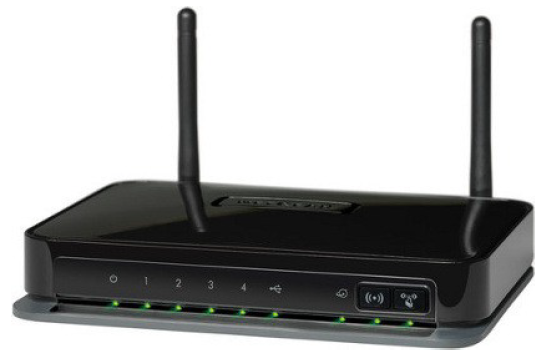
More than likely you’re probably using a router right now that you’ve possessed for a very long time. As routers age, they no longer correspond to the speeds that your service provider gives you. When the processor inside the router starts overheating, speeds get drastically slower. You’ll know this is happening to you if you get fast speeds after turning the router off for a few hours. But sometimes routers simply start failing without any other symptoms except a consistent slow speed. Call your ISP for a new router if they provided you with the one you have. If you can find a spare router, test your speed on it. Perhaps it’s time you considered getting new network hardware. I, for one, replace my network gear at least every 3 to 4 years to stay on top of technology.

2. Congestion At Your Local ISP Router Hurts Your Speed
Your Internet service provider (ISP) has several routers set up along different neighborhoods. Your local router is shared with all of your neighbors. If too many of you are trying to download at high speeds all at the same time, you may experience slight cuts to your line’s performance. This is natural, and simply demonstrates that your ISP doesn’t have enough local routers to competently route all of your signals. In this case, you either gather up your neighbors and get them to join you in petitioning the company, or you simply switch over to an ISP that fewer people in your neighborhood are using. However, take note that problems probably aren’t just local.

3. The ISP Infrastructure Is Taking A Heavy Load, For Now
Datacenter
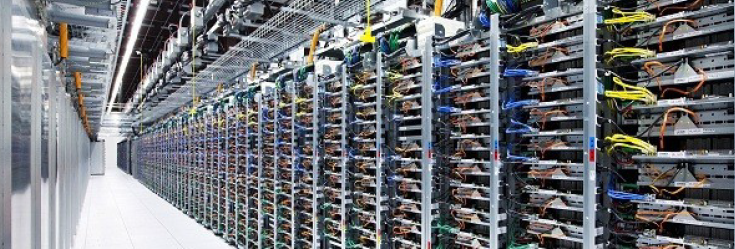
Depending on the time of day, your ISP may or may not be at full capacity. Each ISP has its own infrastructure. Sometimes this infrastructure gets overloaded with massive amounts of traffic. This is why ISPs perform so well in their humble beginnings and start to really drag in speed as they grow. Although signals are sent at the speed of light, they need to be queued, processed, and routed to their proper destinations. Depending on what region of the world you live in, the ISP may have trouble upgrading infrastructure because of government bureaucracy that gets in the way. This isn’t necessarily their fault. It’s just politics and money.

4. Throttling Pulled The Trigger On You
InternetSpeed
ISPs have been known to throttle people who use certain protocols and networks (particularly those on Bit Torrent and other peer-to-peer networks). If you think you’re a victim of throttling, run a speed test first. If the speed on your line is ridiculously higher than your download speed, you’re probably being throttled. Keep in mind that there’s a difference between megabits per second and megabytes per second (1 m byte = 8 m bits).
But there’s still one more problem related to this…

5. Your ISP Gives You Higher Speeds For National Downloads
Where I live there are many ISPs that offer 100 M bit per second download speeds. Incredible, right? The problem is that this speed is the national speed. In other words, I would download at 100 Mbps only from someone in my own country. For downloads originating outside the country, ISPs may offer anywhere from 5 to 20 Mbps. That’s not nearly as much. To test this, go back to the speed test site I linked you to in the last section. Instead of selecting their recommendation, which is local, hop outside your country and select another one. This will test the efficacy of your line outside your local borders. If you see a drop in speed, this is most certainly your problem.
Thankfully, my ISP stopped throttling exterior downloads and uploads, giving me 100 Mbps uplink/down-link speeds everywhere. It’s a bit more expensive, but worth it!

Conclusion
Trust me. I’ve had a ton of frustrations over the years trying to figure out why my lines or the lines of my friends would drop in speed so suddenly. These usually were the reasons, and the solutions I proposed have been very helpful.

Have a great week!
Deuce Marjeta

PC Maintenance Tip: Clean Out The Trapped Dust Bunnies in your Case

Any idea what a major contributing factor is to the failure of the electronics in your desktop computer case?

Heat, Heat and more Heat.

Using Firestorm Viewer or SL Viewer can really send your temperature thru the roof due to the
high impact SL has on your systems memory and graphics.  The build up of heat can cause the computer boards, connections and other elements in your computer
system to fail early.

That is why you see so much focus on good ventilation, not only as part of a computer case itself along with the fans to move air in and out, but also where you place your CPU case when setting up a new PC.  You want to make sure there is plenty of room for your case fans to draw in fresh air to blow over the electronics in your system.  Naturally, pulling air in and out of a case also allows dust particles to be drawn into it because none of our homes are clean rooms and dust is simply a fact of life for the majority of us.  That means you need to take the time every month or so and pull your case out of its dark and confined home and open it up to expel those trapped Dust Bunnies.  Dust Bunnies want to be free so you are actually doing them a favor by regularly clearing out your case.  To do this and not trash the area around your computer desk completely unhook the CPU case from all of your peripherals and connections and take it outside or in your garage with the door open. Remove both side covers with a screwdriver and then using an inexpensive can of compressed air blow out all the vents and the inside crevices of your case. 

Once you have freed all the Dust Bunnies you can put the covers back on and take it back inside to plug all of the peripherals back in and start your computer back up.  If you do this process on a regular basis your PC will run much cooler and it will be less likely that your components will experience early failure due to heat build up.


Deuce Marjeta
Operations Manager

k-bigpic

5 Essential Steps to Keep Your Computer Safe

Computers house so much of our personal data that it’s essential to set up protective measures in case of cyber attack or mechanical failure. These five must-do steps dramatically increase the odds your computer (and your privacy) will remain safe from the latest online criminal activity and let you salvage your most important files if your computer becomes irretrievably infected.

1. Updates are not optional

Updating the software on your system, including the operating system, is an absolute necessity. If you don’t download new versions of programs like Adobe Flash, your computer is more susceptible to malware. Updates to your Windows or Mac operating system help address new threats.

To keep your Windows system up to date, you can use Windows Update to make sure you’re getting the necessary adjustments. This is usually set to update automatically, but here’s how can check to make sure.

In Windows 7, click the Start button, type “windows update” into the search box. Click on Windows Update in the results (it will be under the Program section of the results.) Click on “Change Settings” in the Windows Update window that pops up and then check to see that the Install Updates Automatically option has been selected under Important Updates section. Then choose OK to save your changes.

In Windows 8,open the Search charm, enter “turn automatic updating on or off” and then click Settings. Microsoft issues new updates every second Tuesday of the month.

Mac OS X checks automatically for updates weekly if it has an internet connection. If it finds updates, will it use a pop up window listing the changes and asking you if you are ready to install them (which often requires a computer restart).

2. Uninstall Java

Java is a program that websites used to incorporate into their systems, but is rarely used now. Continuous security holes allowing malware to infect computers through Java makes it no longer safe to leave it on your system unless you absolutely need it. Even the Department of Homeland Security has recommended removing Java from your computer or, at least, disabling it in your browser.

We recently posted a step-by-step guide to identifying if your system has Java installed and what you need to do to remove or disable it. We cannot stress enough the importance of uninstalling Java for the health and security of your computer.

How to disable or uninstall Java?

The easiest and most certain way to protect yourself is simply to uninstall Java, as you would any other other program. If you don’t need Java, and most people do not, this is the safest course. If you encounter a program in the future that requires Java to run, you will be prompted to reinstall it, and you can decide whether or not to do so.

UPDATE 1/14/13:Uninstalling Java may not remove the plug-in from your browser. After the uninstall, we recommend you check your individual browser settings as outlined below, as well.

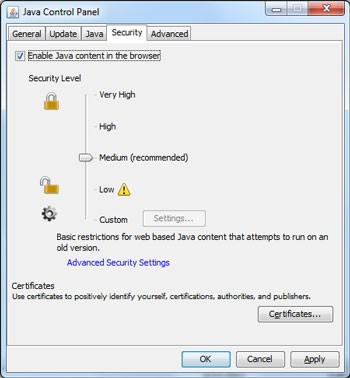
For Windows users, the latest version of Java, Version 7 Update 10, also allows you to disable Java in all of your browsers through the Java Control Panel. Find the Java icon from within the Windows Control Panel, go to the Security Tab and uncheck “Enable Java content in the browser”

Mac users and Windows users with earlier versions of Java who wish to disable Java should follow the instructions below for individual browsers.

Internet Explorer:

Click on the Tools dropdown menu, then Manage Add-ons.

Find the Java Plug-in under Toolbars and Extensions (it’s listed under Oracle America), highlight it and click Disable.

Chrome:

Click on the Chrome menu, and then select Settings

At the bottom of Settings window, click Show advanced settings

Scroll down to the Privacy section and click on Content Settings

In the Content Settings panel, scroll to the Plug-ins section and click Disable individual plug- ins.

Find the Java plugin and click Disable

Firefox:

Click on the Firefox tab and then select Add-ons

Select Plugins, find “Java (TM) Platform plugin” and click Disable (a of 1/11/13, Firefox has automatically disabled the Java plugin, but you should check to verify this has been done for your browser).

Safari:

Choose Safari Preferences

Choose the Security option and uncheck Enable Java

What if I need to use Java?

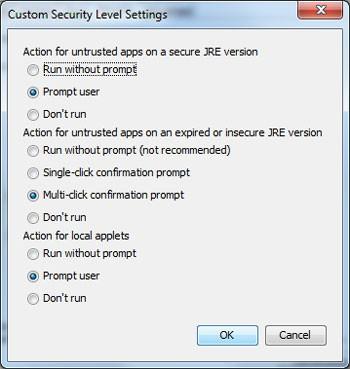
Use of Java on websites is becoming more rare and most users will never need to use it. However, there are certain applications that do require Java (such as the online trading app some use). If you need to use Java, you can set your Java security settings to require a prompt before running any Java apps. You can do this through the custom security setting from within the Security tab in the Java Control Panel.

Alternatively, you can turn off Java in your standard browser (e.g., Chrome), but keep it turned on in an alternative browser (e.g., Firefox) that you only use to access those sites where Java is required.

3. Install malware protection

Trojans, viruses, keyloggers, zombie code, spyware, adware and more are continuously finding new ways to make it onto your PC. But many people are infected by malware that has been around for years, simply because they don’t have decent security software installed.

Malwarebytes is a solid malware protector, especially adept at removing all sorts of things that shouldn’t be on your system. If you don’t want to spend any money, there are very good free antivirus programs available , like Microsoft Security Essentials.

Macs are not safe from these kinds of attacks either. A recent study judged the effectiveness of many top security software programs for the Mac against a virus that made the rounds on the Apple computer. Check out the results for a listing of recommended security programs for your Mac.

4. Use strong passwords

Many of us just use one or two passwords for all the sites we visit. Who can keep track of a couple dozen unique passwords anyway? But if one of those sites gets hacked and they were ot using proper encryption techniques (as happened with the LinkedIn and eHarmony hack in 2012), criminals will now have your password for Amazon, eBay, PayPal, or even your online bank.

There us a simple three-step solution: 1) Make strong passwords. 2) Use different passwords for each site. 3) Use a password management system to track them all.

A strong password usually should have at least 8 characters (the longer the better), with a mixture of upper and lower-case letters, numbers and, if the site or service allows, special characters, such as “!,” “#” and “?.” But it should also be something you can easily remember. And that conflict has led too many people to use common passwords that are easy to hack.

The good news is that recent studies have shown password length may be more important than whether you’re using fancy characters. So the password “IgrewupinBrooklyn” may actually be incredibly difficult to crack. Not sure if your password is strong enough? Here’s how to check your password strength.

Password management systems come in many forms. There’s one built into the Mozilla Firefox browser and many Internet security programs come with that feature as well (such as Norton’s Internet Security 2013.) 1Password ($49.95 at agilewebsolutions.com) is a popular stand alone program that works across many of your devices including computers, tablets and smartphones.

Also, consider lying when creating password security questions. Public information that can be Googled (the street you grew up on, your grandmother’s maiden name, etc.) makes you an easy target for hackers trying to get your password.

5. Back it up

When your system is infected beyond repair or compromised and wiped, you need to have a backup of your critical documents so they’re not lost for ever..Your two major back up solutions are online storage and external hard drives.

Online storage:
The major cloud-based storage services offer a few gigabytes for free with a cost to get access to more. If you back up thousands of large files, like photos and videos, you may have to pay a monthly fee. Cloud-based storage is perfect for saving important can’t-lose documents and the best of your photos. Backing up is as simple as signing up for one of the services and then putting your documents into a special folder on your desktop that will sync to your cloud storage or marking which folders on your hard drive you want to sync.

You can access your files from anywhere with a computer, tablet or phone and an Internet connection. Many also let you sync files between devices, so it’s like having a cloud-based storage and external hard drive storage at the same time.

Most of the cloud-based storage services provide encryption of files while they transfer from your computer to their servers, but the files will usually be stored unencrypted on the server. If you want an extra level of privacy protection, consider a program that encrypts files before uploading them.

External hard drive backup:
The external hard drive option is better for instant access to very large files or if you have tons of files and don’t want to pay a monthly fee (you can get a 500GB WD hard drive on Amazon for around $60). But if a fire, flood or theft takes out your home computer, it will likely destroy your external hard drive, as well. So we always recommend using a backup drive in conjunction with cloud-based storage for your most important files.

Hope these tips help

Have a Great Week!

Deuce Marjeta
Operations Manager

Tech Tips and Advice- The Blue Screen of Death and Computer Overheating.

Hello ZoHa Islands!

I have received many request about over heating and BSOD (blue screen of death) when logged on second life and because second life is resource extensive I felt the need to post this article.

Computer Turns Off Without Warning
If your computer turns off without warning, it’s a sign that something is very wrong. Maybe your computer turns off while playing a game like second life or maybe it turns off after a few minutes even when you are doing nothing.

There are several common causes of sudden power offs and a few more exotic causes. I’ll start with the common and move to the less common.
The Computer Turns Off Without Warning When It Overheats

The most common cause of a sudden power off is overheating. The BIOS program which resides on your computer’s motherboard is designed to power off your computer immediately if your computer gets too hot—typically higher than about 150C (300F). This helps protect your computer from heat damage. To check your temp download monitor app from here. I use this program it works great! Be careful on using some of the apps on this page as ONLY experienced users should ever attempt to overclock or over voltage their system!

One simple reason computers overheat is because they’re in hot rooms. If the temperature in your room goes above about 45C (110F), the fans on the computer may not be sufficient to dump the excess heat from the computer processor (CPU) or graphics processor (GPU). A simple solution (besides getting an air conditioner) is to take the case off of the computer so it can cool to room temperature much faster. Be careful doing this if you have pets or young children who might stick their limbs in the fans or on the hot parts of the computer.

If your room isn’t that hot, your computer could be overheating because its fans aren’t working properly. If your computer doesn’t make any noise when it’s turned on—especially after it has a few minutes to warm up—the fans probably aren’t working. (Note: some mini computers don’t have fans.) Turn off your computer, open up your computer case, and turn your computer back on to see if the fans are working. If they aren’t, you need to fix them yourself (usually by buying new fans), or you need to take the computer to a repair shop.

Sometimes the fans are working but the computer still overheats. This happens when you get too much dust inside the computer. Dust is a terrific insulator—dust is made primarily of cellulose, the same stuff they use for premium home insulation. The dust collects on your computer’s heat sinks and prevents the heat from moving from the CPU or GPU to the air so the fan can whisk away that heat. Smoking around your computer will also not only kill you but will most likely kill your computer, nicotine plus dust will clog it up fast.

Cleaning the dust of your computer takes only a couple minutes. Buy a can of compressed air from the supermarket, turn off your computer, remove the case, and clear out any dust. Using alcohol and cotton swabs cleaning smoke and dust from fans and parts works but be careful not to leave any wet parts after cleaning, and always do this with computer unplugged from power source. As funny as it may seem to your family and friends your computer shocking your ass across the room it is not advised.

If none of the tricks above fixed your problem, your computer probably isn’t overheating, so move to the next section.
The Computer Turns Off Without Warning During Brownouts

Have you ever noticed your lights flickering during a thunderstorm? That’s a brown out. Your computer is much more sophisticated than a light bulb and parts of it need constant power in order to work correctly. For example, your computer memory (RAM) needs a bit of electricity every 28 milliseconds or it will lose data.

High-quality computers with high-quality power supplies often include a small capacitor which acts sort of like a very short term battery during brownouts. It helps keep your computer functioning. Cheaper computers include smaller capacitors, so the computer turns off without warning during brownouts.

Note: some brownouts happen so quick you don’t see the lights flicker. But your computer notices them the same. Even if your computer doesn’t shutdown during a brownout, you can get some weird effects if you lose data from your computer memory or the CPU misses a beat.

If you get frequent brownouts, you can buy a Uninterpretable Power Supply (UPS) for your computer which will keep the power on during a brownout and even a short blackout. Don’t buy the absolute cheapest UPS—they tend to wait too many milliseconds before turning on. Go for a mid-range UPS (about $100 in the U.S.).
The Computer Turns Off Without Warning When There’s A Virus

One way computer viruses hide from anti-virus software is by using space in your computer’s hard drive and memory which is dedicated to Windows itself. When Windows tries to access some of this space and discovers it’s already being used by the virus, Windows doesn’t know what to do, so often it will display a Blue Screen Of Death (BSOD) and become non-responsive. Sometimes it won’t even display the BSOD; the error will be so bad, the computer just turns off.

Obviously the fix for this problem is to remove the virus. You will need a current malware remover and some time.  An excellent malware program is Malwarebytes and is free! The paid version of course works in the background and keeps you protected all the time but the free version will do if you check it each week.   If that doesn’t fix your problem and you think you still have a virus, you will probably need to reinstall Windows.
The Computer Turns Off Without Warning When There’s A Wiring Fault

An electrical short—when the electrical current from two separate wires accidentally connects—can start a fire, so most modern electronics try to detect this problem and shut off instantly if they find it. If your computer turns off without warning, and you have none of the problems above, you could have a wiring fault.

Wiring faults are usually hard to detect and hard to fix. If you changed something physical in your computer shortly before you started having problems, change it back. Otherwise, you will need to bring your computer to a repair shop. Be warned: most repair shops probably won’t fix a wiring fault, or if they do, they will charge more than the cost of a new computer. You can also try some free hardware diagnostic tools to find the problem. SiSoft Sandra is probably the most popular hardware diagnostic tool. You can use it to analyze your hardware, run benchmarks and get information about the software installed on your system. You can download free lite version here.

Normally, a wiring fault would persist and you wouldn’t be able to turn your computer on anymore. But sometimes a wiring fault only happens when the computer gets hot or when a particular component gets used. So your computer runs fine for a few minutes until the circuit gets shortened and then it shuts down without warning. Although having your computer turn off suddenly seems like a pain, it possibly saved your computer from going up in flames and burning down your house.

If you have a wiring fault on a removable component, such as a hard drive, you can replace just that component. But if the wiring fault is on the motherboard, you will probably need to replace the whole computer or just live with the fact that the computer turns off without warning.
Hope this helps.
Deuce Marjeta
Operations Manager