Hello ZoHa Islands.
This week we are going to cover the Statistics Menu (Ctrl+Shift+1) . We will be touching base on the most important sections of the Statistics Menu for you and what the numbers actually mean and when to alert an Estate Manager. Time to sit back, grab a drink and read on.
While standing on your land, select (Ctrl+Shift+1). This can be a bit overwhelming, so we’ll guide you through the relevant parts here.
Note: Sim stands for “simulator” and is another name for “region.”
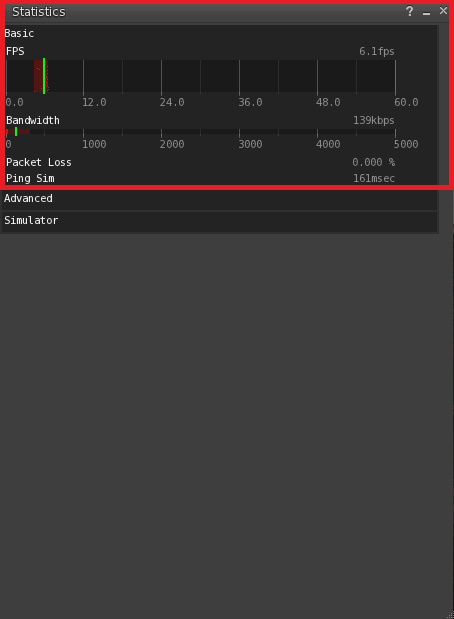
Basic – Click on the word Basic to hide or display this panel.
Displays basic information about your Second Life performance.
FPS: The number of times per second your computer is redrawing (or refreshing) what’s on the screen. Higher numbers are better. A framerate between 15-30 frames per second (FPS) is about as smooth as broadcast television.
Bandwidth: How much data is being transferred between your computer and the Second Life world. This number varies wildly depending on what bandwidth settings you’ve used, where you are inworld, what’s going on, and whether you’re still loading some things (objects/textures/etc) that are in your field of view. If bandwidth is 0kbps, something may be wrong (you may be partially disconnected).
Packet Loss: The amount of data being lost as it travels between your computer and the server. Any nonzero packet loss is bad; packetloss above 10% is very bad. Packet loss might be caused by a dying server (in which case everyone in the region would be experiencing it), a bad connection between you and Second Life (possibly a bad router between your ISP and Second Life, or congestion at your ISP), or problems on your local network (wireless networking, or internet security or firewall software on your computer).
Ping Sim: How long it takes data to go from your computer to the region you’re currently in. This is largely dependent on your connection to the Internet.
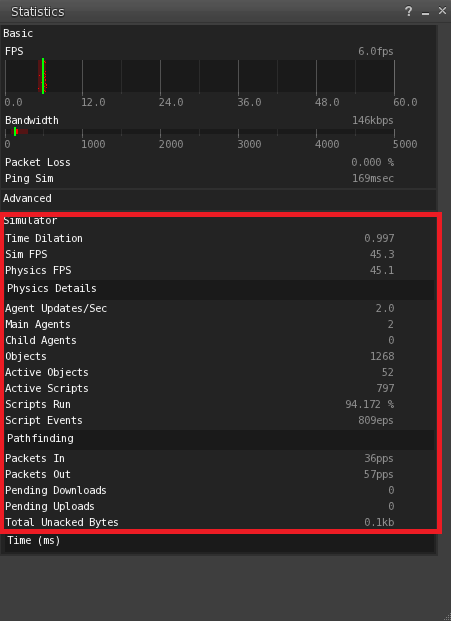
Simulator – Click on the word Simulator to hide or display this panel.
Displays statistics for the region (simulator) you’re currently in.
NOTE: an “agent” is either a user in a given region (a “main agent”) or a user in a neighboring region (a “child agent”). Any user who can see objects inside a simulator region increases the load on that simulator. The nominal values below are for simulators running on a single simulator per CPU. On other simulators (such as water simulators), these number will be different.
Time Dilation – The physics simulation rate relative to realtime. 1.0 means that the simulator is running at full speed; 0.5 means that physics are running at half-speed.
Sim FPS – The simulator frame rate. This should now always be the same as the physics frame rate — 45.0 when things are running well.
To interpret the Sim FPS performance of your region:
- 45 FPS: The highest possible value. No action necessary.
- 35 – 44 FPS: This is quite good; you don’t need to tune if it never goes below 35 FPS.
- 20 – 35 FPS: This is slow, and should be noticeable. Adjustment is needed to improve your region’s performance.
- 10 – 20 FPS: This is not so great.
- 0 – 10 FPS: This is pretty much terrible.
If your performance of your region is consistently over 35 FPS at its busiest time, you can stop reading here. Fortunately, most regions are above 35 FPS most of the time.
Physics FPS – The frame rate at which the physics engine is running. This should normally be at or near 45.0.
Agent Updates/Sec – The rate at which agents on this simulator are being updated. Normally 20 updates a second, this will decrease if the simulator has a large number of agents on it.
Main Agents – The number of agents (users) who are on this simulator.
If this is exceptionally high, it is likely the prime cause of this region’s slow FPS. Avatars contain attachments and they Teleport in and out – each time affecting the regions performance slightly.
Child Agents – The Child Agents line displays the number of avatars outside your region that can see into it, which can also slow your region down if it’s a significant number. (This happens only on connected sims/regions)
Objects – The total number of primitives on the simulator. This value does not include primitives being worn as attachments.
Active Objects – The number of objects containing active scripts on the simulator. This value does not include scripts inside attachments, unless the attachment wearer is sitting on a scripted object.
Active Scripts – The number of running scripts that are currently on the simulator, including scripts attached to agents and objects.
Script Perf – Number of LSL opcodes being executed a second by the simulator. Note that this is the number of ACTUAL instructions executed in the last second, not the theoretical maximum opcodes/second. If your simulator is not running very many scripts, this number will be low even if performance is good.
Packets In – UDP packets being received by the simulator.
Packets Out – UDP packets being sent by the simulator.
Pending Downloads – Number of asset downloads to the simulator that are pending. If this is greater than 1, this means that you may see delays in viewing notecards or scripts, and rezzing objects.
Pending Uploads – Number of current uploads of asset data pending. If this number is non-zero, this means that there may be performance issues when attempting to teleport.
Total Unacked Bytes – The size of the reliable packet data sitting on the server waiting to be acknowledged. A large number may indicate a thin pipe or other possible problems between the viewer and the sim.
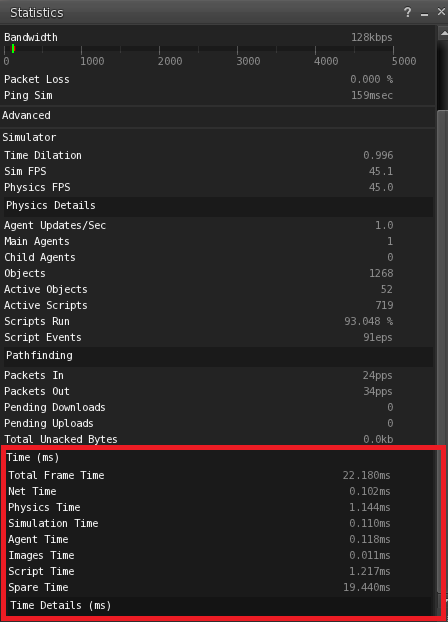
Time – Click Time to hide or display this panel.
The following are the different times listed in the Time section of the Statistics bar.
Total Frame Time – The sum of all time values listed below it, this measures how much time it takes the simulator to run everything that the simulator is trying to do each frame.
- < 22 ms - The simulator is healthy, everything is running as fast as it can, and more scripts can be added without reducing the performance of individual scripts.
- approx. 22 ms – The simulator is healthy, but there are probably a lot of scripts and agents on the simulator, meaning that script execution is being slowed down in order to maintain the simulator frame rate.
- > 22 ms – The simulator is experiencing severe load, either due to physics or a large number of agents, such that even by slowing down script execution it is impossible to compensate. The simulator frame rate has been reduced as a result.
Net Time: The amount of time spent responding to incoming network data.
Sim Time (Physics): The amount of time that frame spent running physics simulations. In general, this should be less than 5 milliseconds.
If this value is over 5 milliseconds this is when I get the call to restart a region which is an iffy temporary fix at best. This is when the ZoHa Estates Managers come into play and notify the owners of the scripts or return the objects if they are significantly impacting the performance and immediate action needs to take place.
Sim Time (Other): The amount of time that frame spent running other simulations (agent movement, weather simulation, etc.)
Agent Time: The amount of time spent updating and transmitting object data to the agents.
Images Time: The amount of time spent updating and transmitting image data to the agents.
Script Time: The amount of time spent running scripts.
Spare Time: The amount of time that is available or unused. (Higher the better…when this dips to a lower number your region may be experiencing lag)
Inefficient, poorly written or very busy scripts in your region can also slow it down.
So what can you do to help?
Lets cover a few things to help sim performance as a whole –
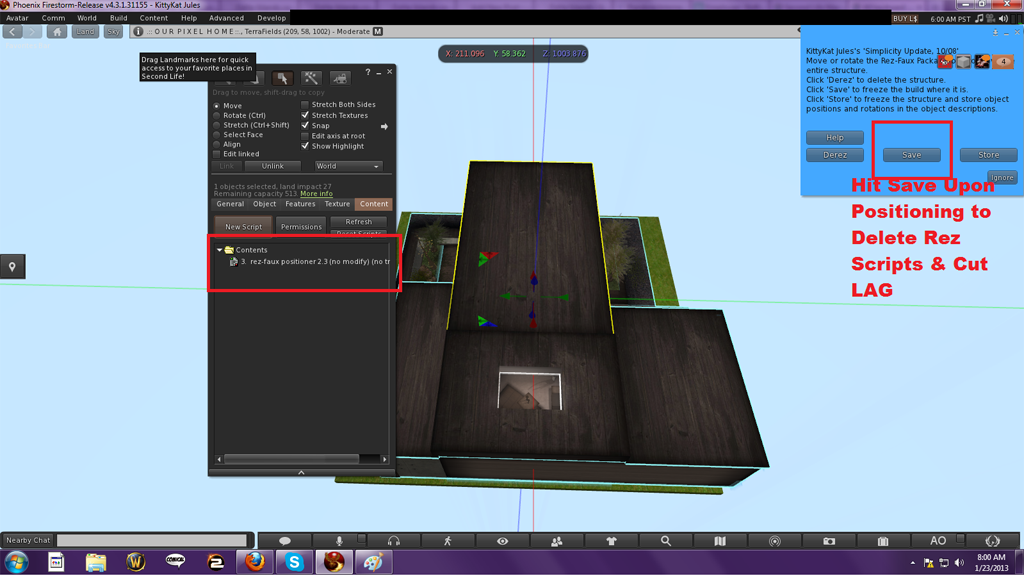
Once you know which scripts are consuming your region’s resources, you can remove, replace or optimize them. Also, note that reducing the total number of scripts in your region can improve performance. You can ask for us to test your region but from now on top scripts will be addressed as follows. When we test a sim region we will send a message via NC on which scripts are lagging out the region to give you a chance to either remove or optimize them. If you do not fix this issue we may return the object in question! Usually these are REZ scripts – which are scripts in your builds that remain in each linkset if you do not save/freeze your builds after rezzing. Because we want these regions to run at top performance this is necessary and will be enforced! Remember its not fair to make the whole region pay for one person’s faulty items.
Examples of problematic scripts include:
- Scripts that are constantly active without sleeping; for example: Sensor scripts with less than a few-second sleep interval.
- Temp-rezzer scripts that allow a slightly larger number of prims at the expense of region performance. << big lag monsters
Physical objects can potentially slow your region down. Specifically, physical objects that are often moving and collide with each other can contribute significantly to the time your region takes to perform the physics calculations. In the Statistics Bar, the Sim Time use ctrl + shift + 1 (Physics) line shows how many milliseconds your physics calculations are taking. If this value is over 4 milliseconds, then it may be worth check to see if this can be reduced. Again you will be sent a warning on these objects and be asked to correct them or they will be removed.
Remove Excessive Large Textures –
Excessive use of large textures can slow down a region. In general, it’s a good idea to avoid using textures greater than 512×512 pixels. In the Statistics Bar, the Images Time line tells you how many milliseconds the handling of your region’s images is taking. If this value is over 2 milliseconds, it may be worth checking to see if it can be reduced: When a person’s avatar views a large image or numerous smaller images for the first time since entering the region, they’ll automatically download the image to their Second Life viewer. If a number of avatars are doing this simultaneously, a significant load is created on your region, slowing down its FPS. If you can’t remove these large textures, the following strategies might be useful for increasing your region’s performance:
- Reducing the number of unique textures
- Reducing the size of textures
- Reducing the resolution of textures
- Optimize Scripted Texture-Changing Objects
Scripted objects that change textures can also slow down a region. Each time a new texture is displayed, it must be downloaded to each avatar looking at the object. If you can’t remove these objects, then reducing the number and size of unique textures in these objects can increase your region’s performance
Large numbers of objects will slow your region down, especially if they’re of any of the following types:
- Moving
- Rotating
- Flashing
- Scripted
- Shape-changing sculpties
Reduce Visitor Attachments:
While this is harder to do, some regions have been able to see some improvements by having visitors remove attachments, especially high-prim or heavily scripted ones.
Region Optimizations for Improved Viewer Performance
The following region items can slow down viewer performance:
- Large or numerous textures, when an avatar first comes within sight of them
- Overuse of sculpted prims, twisted tori, and other geometrically complex objects.
- Particle effects (which includes bling and poofers).
Keep in mind some of your visitors may have slow graphics cards or PCs.
<---- In Most Cases, you figure the average SL user buys an off the shelf mid grade PC.
Well I hope this helps and I hope you will do your part in making your region run top performance. And if you still find your region is lagging you could always try CTRL + Q, this seems to help me when I'm frustrated with SL. *whistles innocently*
Have a great week ZoHa Islands!